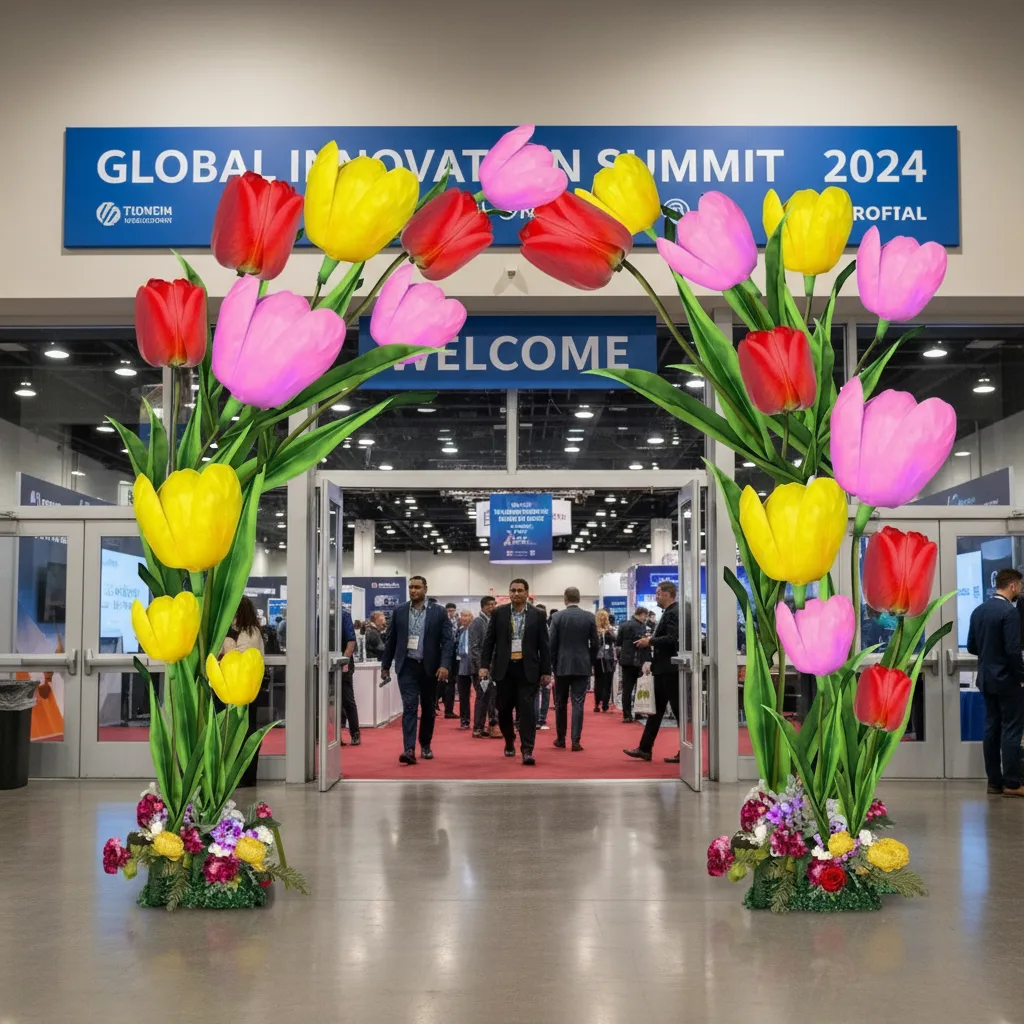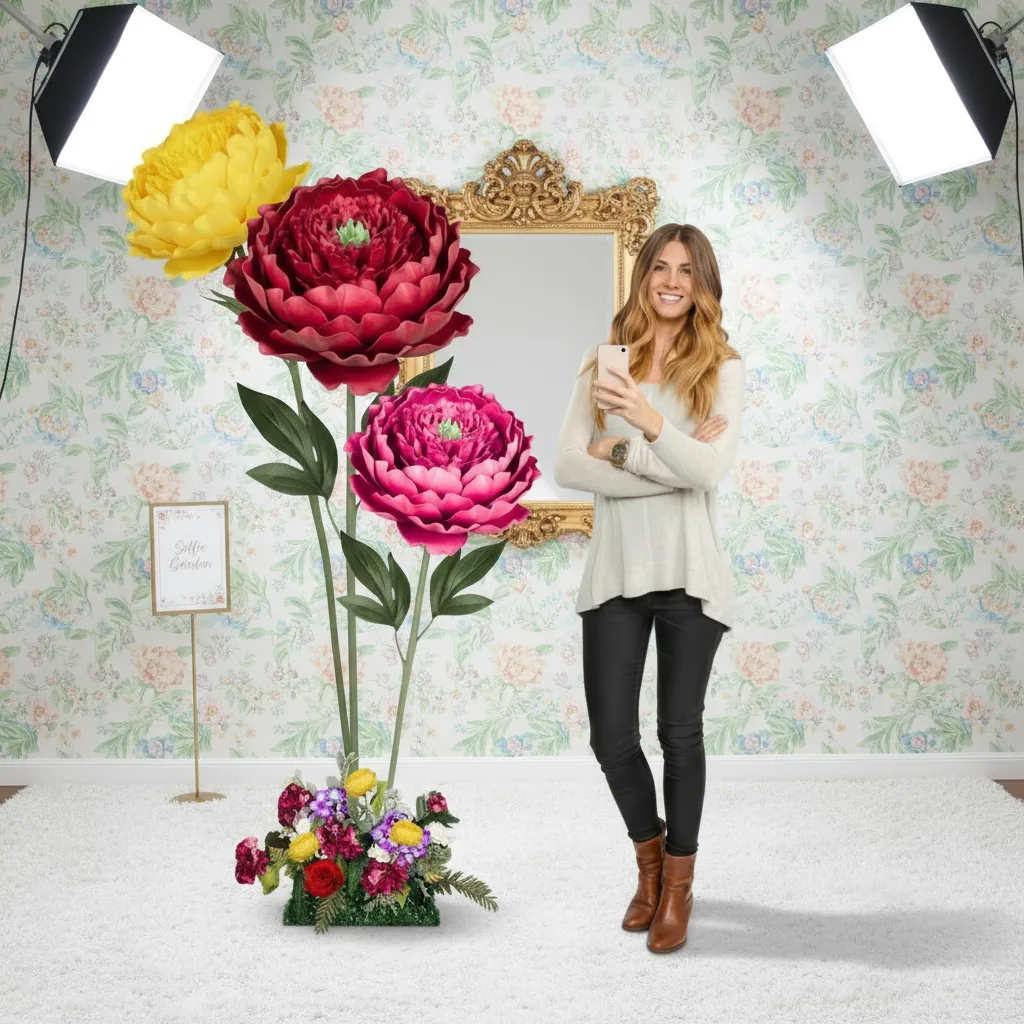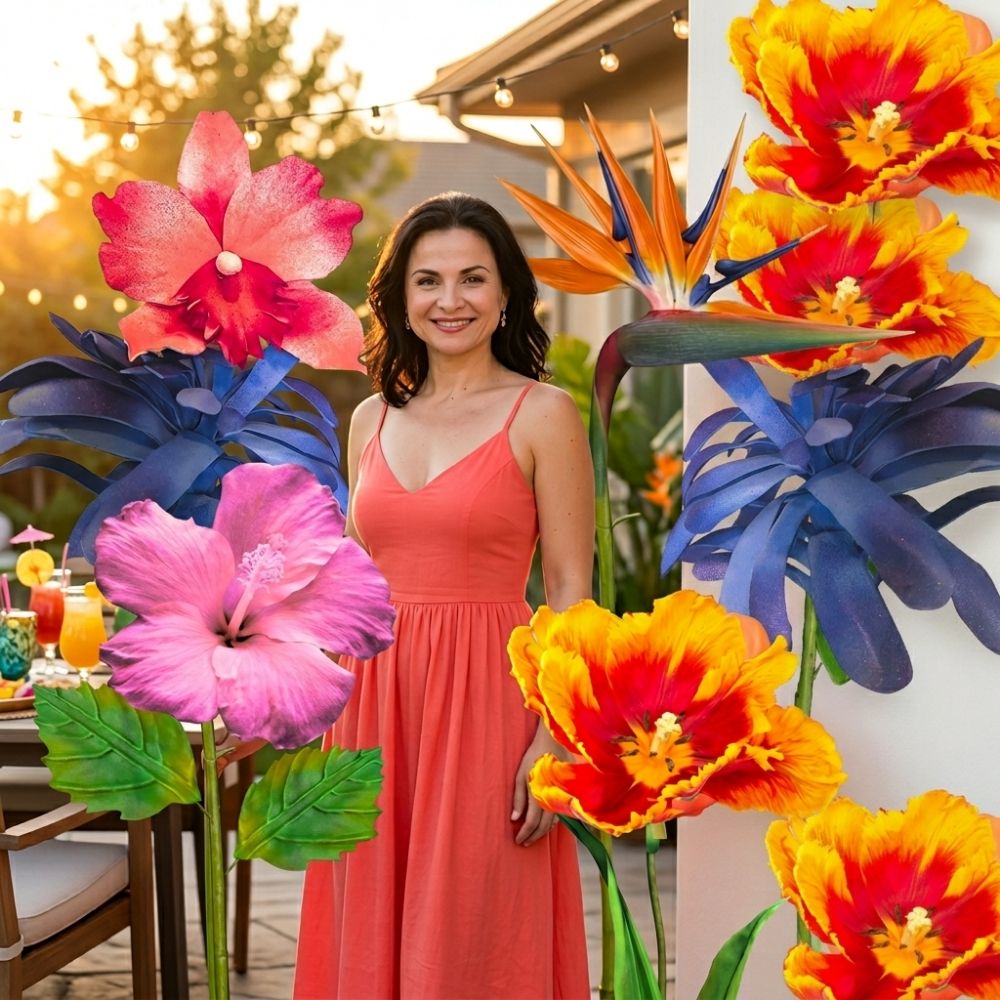
Mastering SVG and Cricut for Giant Paper Flowers

Key Takeaways
Crafting intricate designs by hand can be a frustrating process, especially when you're trying to cut a dozen identical petals. No matter how careful you are, they never come out quite the same. This is where the combination of SVG files and a Cricut machine completely changes the game for crafters, turning frustration into flawless creation.
An SVG, which stands for Scalable Vector Graphic, is a digital blueprint for your design. Its key benefit is scalability. Unlike a regular image file that gets pixelated when enlarged, an SVG can be stretched to any size — from a tiny bud to a giant backdrop — without losing its crisp, clean detail. When you pair that perfect blueprint with a Cricut machine, you get flawless, precise cuts every single time.
The ability to bridge the gap between a digital design and a physical object with such accuracy is why Cricut has become a powerhouse in the crafting world. It provides a seamless solution to one of the most common crafting challenges: inconsistency.
This isn't just a niche tool; it's a massive movement. Cricut holds an incredible 65–70% market share in the North American craft cutter industry, with a community of 8.7 million registered users bringing their ideas to life. From intricate cards to massive event installations, crafters are relying on this technology to do the heavy lifting.
Why SVG Cricut Giant Paper Flowers Are a Game-Changer
I started Amazing Giant Flowers because I wanted to make show-stopping floral installations accessible to everyone — not just professional florists with expensive equipment. The moment I combined a well-built SVG file with my Cricut, everything clicked. Suddenly I could produce 30 identical rose petals in the time it used to take me to hand-cut five.
For giant flower artists, the real magic is in the details. An SVG file doesn't just store a picture of a petal; it holds the exact mathematical data for every single curve and line. Your Cricut reads this data and executes the cut with a level of precision that's impossible to replicate by hand.
The benefits of using SVG files with a Cricut are clear and transformative:
Using an SVG with your Cricut isn't just about cutting faster; it's about elevating your craft. It gives you the power to produce store-quality results from your own home or studio.
This efficiency is a massive boost for everyone. If you're a hobbyist, it means more creating and less tedious cutting. If you're running a business, it translates to faster turnaround times and a higher-quality product, letting you take on bigger and more ambitious projects with confidence.
To see just what's possible, check out our guide on creating a DIY giant paper flower from start to finish. The partnership between SVG and Cricut truly opens up a whole new level of artistry.
Choosing the Right Materials for Giant Paper Flowers
A beautiful giant flower starts with the right foundation. Your Cricut is the powerhouse, but the specific materials and accessories you choose are what truly make or break the final look, especially when working with EVA foam or thick paper.
I've tested dozens of material combinations over the years, and I want to save you the trial-and-error headache. Here's what I've found actually works.
For outdoor displays, durability is everything. EVA foam is the best choice for standing up to weather. Paper flowers are lovely but can't handle humidity or rain. EVA foam in 2mm thickness cuts cleanly on the Cricut Maker with a Knife Blade, and the finished petals are lightweight, flexible, and surprisingly realistic-looking once painted.
For a deeper dive into working with this material, check out our complete guide on the best way to cut foam for crafting.
The secret to a stress-free project is having everything ready before you start. Taking a few minutes to gather your tools and organize your digital files is the single best thing you can do to ensure your SVG and Cricut experience is smooth, fun, and successful.
Let's walk through the physical items you'll want to have within arm's reach. Getting this sorted out first means you can stay in your creative flow without interruption.
As you can see, it's a simple chain of events: get your SVG file ready, gather your physical supplies, and then tell your Cricut what it needs to do. Nail these three things, and you're golden.
Step 2: Prep Your Digital Files
An organized digital workspace is just as important as a tidy craft table. A little organization upfront will save you so much time.
Getting comfortable with file types is a great skill for any digital crafter. If you're curious and want a deeper dive, there are some great articles on understanding various image formats including SVG. And for those exploring other crafting avenues, we also have a guide on how to make paper flowers with crepe paper. A little prep now means all your energy can go into the fun part — creating.
This is where your digital file becomes a physical creation. After you've got your perfect giant flower SVG and all your materials ready, it's time to dive into Cricut Design Space. This software is the command center for your cutting machine, and mastering a few key tools is what makes the difference between a frustrating afternoon and a flawless project.
First things first, let's get your flower template into the workspace. A high-quality SVG for Cricut, like the templates we design at Amazing Giant Flowers, is constructed with separate layers for every single element. That's what gives you the power to work with each petal individually.
Follow these steps to upload your file:
Your flower template will now appear on the digital mat. At first, the whole design will probably be grouped. Our first job is to break it apart.
The Ungroup tool breaks the design into its component parts so you can manage them one by one. This is the most critical first step. Select your entire design, then click Ungroup in the top toolbar. Now you can resize specific petals, get rid of pieces you don't need, or duplicate the ones you need more of.
If you're just getting your feet wet, our guide on Cricut projects for beginners has some great foundational advice to build on.
Using Weld, Slice, and Contour Like a Pro
With your petals separated, you can start really customizing with the Weld and Slice tools. They are opposites but equally powerful.
Here's how I think about it: Welding is like permanently gluing pieces together into one. Contouring is like putting a piece of tape over a cut you want to ignore. Both are lifesavers for complex designs.
For a symmetrical flower, identical petals are key. There's a much simpler way than resizing one by one.
If you ever plan to sell your own digital designs, mastering these tools is non-negotiable. The demand for well-made SVGs is huge — Cricut's platform revenue grew 5% to $327.4 million in one year, with its Contributing Artist Program opening designers to an audience of over 8.6 million users. A thoughtfully crafted flower SVG is a genuinely valuable asset in a booming market.
You've tweaked your design in Cricut Design Space, and now it's time for the magic to happen. Getting that perfect cut is about knowing your materials and machine so you can achieve professional results every time.
The unsung hero of every great Cricut project is the machine mat. A clean, sticky mat is completely non-negotiable. Its only job is to grip your material and hold it perfectly still while the blade moves at high speed.
To keep your mats in top shape, here are a few simple habits:
Relying on "Default" pressure is a gamble. Taking control of your settings will help you avoid common cutting issues. We've put in countless hours testing what really works for the materials in our giant flower kits.
Think of these settings as your launchpad. Every machine is a little different, so small adjustments may be needed. But starting here will solve the vast majority of cutting issues right away.
Before you hit "Go," take a moment to arrange your petals on the virtual mat. A few minutes of strategic placement can save a surprising amount of expensive material.
This thoughtful prep is what makes the SVG and Cricut combination such a powerful and efficient way to create.
Even seasoned crafters run into technical hiccups. It's frustrating when Cricut Design Space throws you a curveball, but most common SVG issues have surprisingly simple fixes. Let's walk through how to solve the most frequent problems.
It's also reassuring to know that the Cricut platform is built to last. The company is very stable, reporting its 9th straight profitable year with $76.7 million in net income. With over 3.09 million paid subscribers and counting, you can feel confident that the software supporting your craft isn't going anywhere, as detailed in recent Cricut investor relations resources.
For most giant flower projects using cardstock or crepe paper, the Cricut Explore Air 2 is a fantastic and budget-friendly choice — it handles materials up to 80 lb cardstock beautifully. If you want to work with EVA foam, thick felt, or materials over 2mm, I strongly recommend upgrading to the Cricut Maker or Maker 3, which support the Knife Blade and offer significantly more cutting force (up to 4kg).
The Maker 3 also supports Smart Materials, which means you can cut without a mat for pieces up to 12 feet long — a genuine game-changer if you're building large-scale floral installations for events.
Can I resize SVG flower templates to any size I want?
Yes, and this is one of the biggest advantages of the SVG format over PNG or JPG templates. Because SVGs are vector-based, you can scale a petal from 3 inches all the way up to the full 12×24 inch mat size (or larger with tiling) without any loss of edge quality. I regularly resize the same petal template from a 6-inch boutonniere to a 30-inch statement bloom for photo walls.
Just remember to always keep the aspect ratio locked when resizing in Design Space to avoid distorting your petal shapes. And always do a test cut at the new size on scrap material before cutting your good cardstock.
Ready to Create Something Amazing?
Browse our collection of giant flower kits and start your next project today.
Ready to Create Something Amazing?
Browse our collection of giant flower kits and start your next project today.